PaT Lite: Chat to Task
Casey turns ideas into tasks. Erin makes them happen. Together, they’ll show you how PaT keeps work flowing.
On this page
- Step 1
- Step 2 · Demo - Convert a chat to a task
- Step 3
- Step 4 · Your chat list
- Step 5 · Reviewing the message
- Step 6 · Converting a Chat to a Task
- Step 7
- Step 8 · That’s it — the chat is now a task
- Step 9
- Step 10 · Here Erin reviews the task details and deadline. At this point every user decides
- Step 11 · Clicking the Task Wall tab opens Erin’s Task Wall in Horizon view
- Step 12
- Step 13 · The endgame for the To Manage Task Wall? You’ll barely need it
Step 1
Chat to Task
Step 2 · Demo - Convert a chat to a task
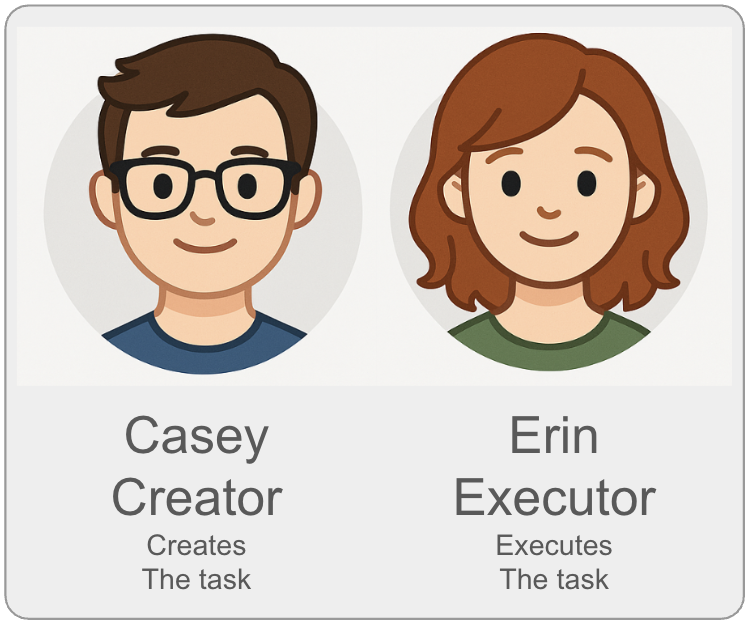
“Meet Casey Creator and Erin Executor.”
Casey turns ideas into tasks. Erin makes them happen. Together, they’ll show you how PaT keeps work flowing.
Step 3
The highlighted tab takes you to the PaT Chat Wall, your hub for conversations that actually move work forward. Familiar like email — but built for action.
Step 4 · Your chat list
This panel shows all your chats:
- From other PaT users
- From outside users (emails auto-convert here)
From here, you can open, organise, or assign any chat. Let’s click this chat to open it. Click the purple ball.
Step 5 · Reviewing the message
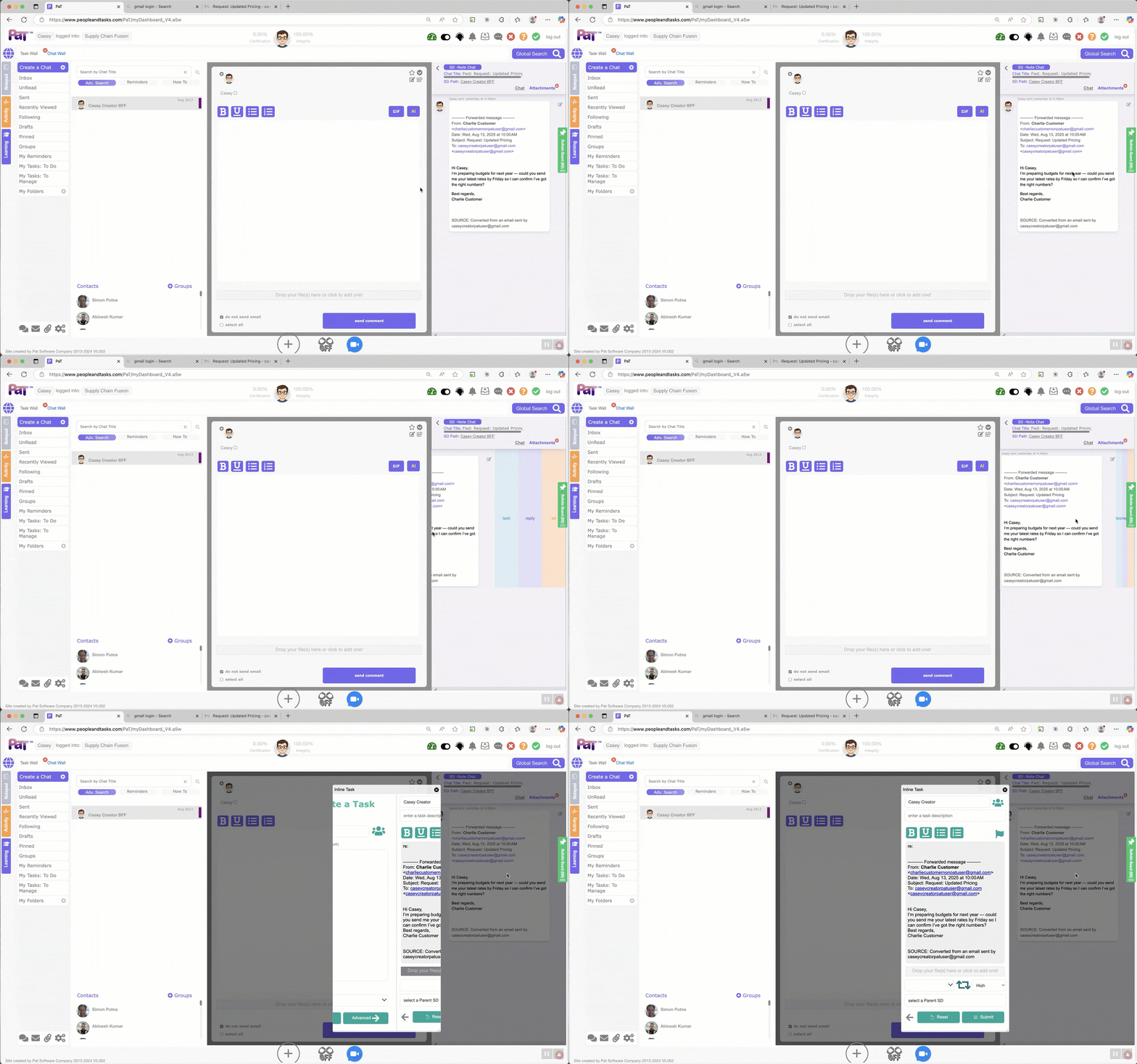
Clicking a chat item opens the thread. This one started as an email that PaT automatically converted into a chat.
After reading it, we’ve decided Erin should handle this request — so we’ll convert it into a task..
Step 6 · Converting a Chat to a Task
Swipe left on a message to open the sub-menu. Select Task, and PaT instantly creates one — opening the Task UI so you can add details and assign it.
Step 7
Click Task to continue
Step 8 · That’s it — the chat is now a task
It's assigned to Erin, and the deadline is set. From here, PaT takes over the heavy lifting: constantly monitoring progress, escalating if deadlines are missed, and even adjusting integrity ratings tied to performance agreements. No chasing. No loose ends. Just a system that makes accountability automatic.
Step 9
Now we’ve switched to Erin’s view. She has a new alert in her task inbox — showing how assigned work appears instantly, so nothing falls through the cracks.
Click the notification to open the task.
Step 10 · Here Erin reviews the task details and deadline. At this point every user decides
- Can I meet this deadline?
- Do I need to negotiate a new one?
- Or, in rare cases, should I reject the task?
This decision is critical. Your Task Integrity rating isn’t about never missing deadlines — it’s about how you manage them. PaT empowers you to react, recover, and replan before it’s too late. That’s how teams move from good to great.
Step 11 · Clicking the Task Wall tab opens Erin’s Task Wall in Horizon view
Checking it regularly shows what’s on now and what’s coming next, helping her manage her workload.
Step 12
Back in Casey’s view, he’s switched his Task Wall from To Do (tasks he owns) to To Manage (tasks he’s assigned to others). Here, Casey can also sort by Horizon or, as shown, by Assignee to see who’s responsible for what and when.
Step 13 · The endgame for the To Manage Task Wall? You’ll barely need it
From chat → task → job done. Casey’s views are helpful early on, but once PaT is embedded they become almost redundant. The system takes over, with dashboards driving a culture where assignees either deliver on time or flag risks early — empowering teams to reach new levels of performance. Imagine a world where every task you assign is completed on schedule — or you hear about risks well before they matter. That’s the world PaT creates.