Video rooms: guests joining and asking to record
Summary This module covers guests and recording in your PaT video room. When someone outside PaT opens a link to your video room, PaT asks for their first name, so everyone in the meeting knows who…
လၢလံာ်ကဘျံးအံၤ
Summary This module covers guests and recording in your PaT video room. When someone outside PaT opens a link to your video room, PaT asks for their first name, so everyone in the meeting knows who they are, and they knock to be let in. Only a host can record in a video room, so a staff member who is signed in to PaT can ask the organiser for permission to record. The organiser can allow or deny the request. If nobody answers within 10 seconds, the request is allowed, so a meeting can still be recorded when the organiser hasn't joined.
Inviting a guest
Step 1
Open your video room: click the blue video button, the video camera at the right end of the row of round buttons at the bottom of the screen, then click Open my room. Your room opens on a tab called my Video Room.
Step 2
Click the share icon, three joined dots, at the top left of your video room. PaT copies a link to your room, and a small message says link copied.
Step 3
Paste the link into an email or message and send it to your guest. Anyone who opens it joins as a guest.
Joining as a guest
Introduction. A guest is someone outside PaT who joins from a shared link. Staff invited from inside PaT skip the name box, because their invite already carries their name.
Step 1
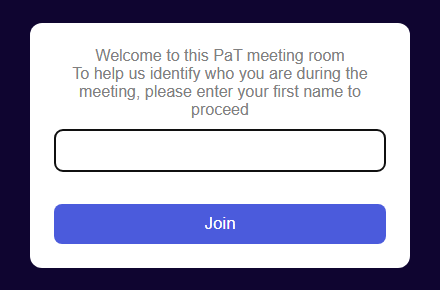
Open the link you were sent. Before the video room loads, a box asks for your name: Welcome to this PaT meeting room. To help us identify who you are during the meeting, please enter your first name to proceed.
Step 2
Type your first name and click Join. A name can be up to 30 characters. The word Guest isn't accepted, and nor are these characters: $ ! < > : ;. If something isn't accepted, a message under the box says why.
Step 3
The page reloads and the video room opens with the name you typed. It's the name everyone in the meeting sees.
Step 4
PaT video rooms are locked, so you knock and wait until the organiser lets you in.
Step 5
The next time you join from the same device and browser, your name is already filled in. Check it and click Join.
Letting people in
Step 1
Because the room is locked, guests and staff knock before they can come in. The organiser, and anyone else in the room as a host, is told when someone knocks.
Step 2
Let the person in, put them on hold with a message, or reject them.
Asking to record
Summary Only a host can record in a video room. A staff member who is signed in to PaT, and is not the room's organiser, can ask the organiser for permission. This works on a computer, not in the PaT phone app.
Step 1
Join the video room from PaT while you are signed in to PaT in the same browser. A Request to record button, with a padlock, sits at the top centre of the room.

Step 2
Before you ask, make sure everyone in the meeting agrees to being recorded.
Step 3
Click Request to record. The button changes to Asking the organiser, with a countdown from 10.

Step 4
If the organiser clicks Deny, the button says The organiser said no. A few seconds later it changes back, and you can ask again, up to 6 times in an hour.
Step 5
If the organiser clicks Allow, or doesn't answer within 10 seconds, your room reloads and you rejoin as a host. The button says You can record now. Use the record button in the room, and then Recording allowed.

Step 6
Click Record, the dot in a circle in the bar at the bottom of the room, to start recording. When you stop the recording, you can download it to your device.
Step 7
As a host you can also let in people who knock, and mute or remove people. Use these only when the meeting needs them.
Step 8
Your permission lasts until the organiser stops it, or for 12 hours. If you reload the page or click refresh room, you come straight back in as a host.
Answering a request
Summary For the room's organiser, with the video room open.
Step 1
When a staff member asks to record, a line appears at the top of your video room with their first name, is asking to record, and a countdown.

Step 2
Click Allow to let them record, or Deny to say no. You have 10 seconds to answer.
Step 3
If you don't answer within 10 seconds, the request is allowed. This lets staff record when the organiser hasn't joined the meeting.
Step 4
Once a request is allowed, the line says the staff member can record, with Stop and Hide buttons. If nobody answered in time, it also says no answer within 10 seconds.

Step 5
Click Hide to clear the line from your screen. It doesn't stop the recording.
Step 6
Click Stop to end their permission. They get 30 seconds to stop and save their recording, then their room reloads as a participant, and they knock to come back in.

Purpose / Intent of the Module
A brief description of what this module is about
Header One
Check yourself
Checking your PaT sign-in…