PPaT Wiki
DocumentationPathwayKnowledge baseForumBlogContact
Week streakFOUNDATION0 badges
Language: English
  • English
  • Nederlands
  • Karen (S'gaw)
  • Français
  • Deutsch
  • Lea faka-Tonga
  • Te reo Māori
Ask the community

Your PaT Pathway

0/46
Foundation
0/43
Practitioner
0/37
Advanced
0/20
Super User

Practitioner

  • ○Pop-Out Chat Feature (not passed yet)
  • ○Chat reminder (not passed yet)
  • ○Chat to SD (not passed yet)
  • ○Chat to email to chat (not passed yet)
  • ○Email to chat to email – non PaT users (not passed yet)
  • ○C2E Attachments (not passed yet)
  • ○Email to BFF (not passed yet)
  • ○How SD chats work with SD Members and External Users (not passed yet)
  • ○Docked Chats (not passed yet)
  • ○Inline chats (not passed yet)
  • ○Multi-Tasks (not passed yet)
  • ○Task Integrity: what it is and why it drops (not passed yet)
  • ○Chat to task to project (not passed yet)
  • ○SD Task wall view (not passed yet)
  • ○Using SDs as a report or meeting minutes app (not passed yet)
  • ○Running Meetings with SDs (not passed yet)
  • ○Invite Attendees (not passed yet)
  • ○Recurring tasks: create and edit (not passed yet)
  • ○Info Icons (not passed yet)
  • ○Moving Section Headers (not passed yet)
  • ○SD Element Categorisation (not passed yet)
  • ○Add any Image as a Section Header Icon (not passed yet)
  • ○Embedding SDs in SDs (not passed yet)
  • ○Assigning an SD to a new parent (not passed yet)
  • ○Filing and retrieving SDs (not passed yet)
  • ○SD Owner Functions (not passed yet)
  • ○Docking SDs and Updating Images (not passed yet)
  • ○Embedding live data in an SD (graphs and spreadsheets) (not passed yet)
  • ○PaT AI (not passed yet)
  • ○Track Engagement (not passed yet)
  • ○Share and record your screen (not passed yet)
  • ○Different Form Uses (not passed yet)
  • ○Form Wall (not passed yet)
  • ○SD Form Responses: finding and exporting form responses (not passed yet)
  • ●Video rooms: guests joining and asking to record (this page)
  • ○Comprehension Audits (not passed yet)
  • ○Evidential audits: completing one (not passed yet)
  • ○LMS Architecture (not passed yet)
  • ○Safe Walks (not passed yet)
  • ○Customer-specific training: how it works (not passed yet)
  • ○How PaT Manages Inactive Users (not passed yet)
  • ○How to unlock a module for a staff member (not passed yet)
  • ○Health and safety templates (not passed yet)
  • Company Structure: adding a new user
  • Company Structure: customer companies
  • Company Structure: departments, job titles and roles
  • Company Structure: modules for a site or a country
  • Company Structure: process categories
  • Connections: linking PaT to Microsoft 365
  • Forms - API Integration
  • How to create a campaign for the PaT Lite training portal
  • How to edit an existing Bulletin Board Post
  • How to set up your SD Map
  • LMS Feedback: learner ratings and comments
  • LMS Metrics - If you can't measure it, you can't manage it
  • Manage users
  • Pacing recertifications and escalations
  • PaT Business Unit Template Overview
  • SD Workflows - Multi Submit
  • SD Workflows - Workflow Settings
  • System Activity: escalations, logins, emails and more
  • System Config: company settings
  • The org chart
  • Add any Image as a Section Header Icon
  • Assigning an SD to a new parent
  • C2E Attachments
  • Chat reminder
  • Chat to email to chat
  • Chat to SD
  • Chat to task to project
  • Comprehension Audits
  • Customer-specific training: how it works
  • Different Form Uses
  • Docked Chats
  • Docking SDs and Updating Images
  • Email to BFF
  • Email to chat to email – non PaT users
  • Embedding live data in an SD (graphs and spreadsheets)
  • Embedding SDs in SDs
  • Evidential audits: completing one
  • Filing and retrieving SDs
  • Form Wall
  • Health and safety templates
  • How PaT Manages Inactive Users
  • How SD chats work with SD Members and External Users
  • How to unlock a module for a staff member
  • Info Icons
  • Inline chats
  • Invite Attendees
  • LMS Architecture
  • Moving Section Headers
  • Multi-Tasks
  • PaT AI
  • Pop-Out Chat Feature
  • Recurring tasks: create and edit
  • Running Meetings with SDs
  • Safe Walks
  • SD Element Categorisation
  • SD Form Responses: finding and exporting form responses
  • SD Owner Functions
  • SD Task wall view
  • Share and record your screen
  • Task Integrity: what it is and why it drops
  • Track Engagement
  • Using SDs as a report or meeting minutes app
  • Video rooms: guests joining and asking to record
  • Activity Notifications
  • Add members and set permissions
  • AI Summary: a quick summary of an SD
  • Capture and Manage Accidents
  • Capture and Manage Hazards
  • Chat to task
  • Chat Wall
  • Contextual Communication
  • Convert a Note to a Task
  • Create a new SD
  • Create a Task
  • Critical Chrome Extensions
  • Document Store: shared links, your folders and favourites
  • Fast Notes
  • Getting help: the PaT Helpdesk
  • Global Search
  • Group Chats
  • How to embed Outlook onto your PaT
  • How to resize your browser to best view PaT
  • How to use the PaT Lite training portal
  • Insert links
  • Module Learning - Desktop
  • Module Learning - Mobile
  • My Profile
  • Newbie PaT Intro – Chats and SDs
  • Notes
  • Out Of Office: turning it on, and the calendar on your Task Wall
  • Outlook 2FA Issue
  • PaT Chat Overview
  • PaT Mobile App – Overview
  • Preview, download and share files
  • Publish a Bulletin Board Post
  • Reading an SD in another language
  • SD Elements
  • SD Main page useful features
  • SD Overview
  • Section Headers
  • Security measures for multiple users on a device
  • Share Feedback
  • Signing in to PaT and resetting your password
  • Task Management
  • Task Management System
  • Task Wall
  • Traffic light progress
  • Upload file attachments
  • Video calls on the mobile app
  • Auto Escalation
  • Build a reporting system
  • Chat Management - Pro Tips
  • Conditional Formatting
  • Configuring a UDF: columns and calculated columns
  • Configuring a UDF: filters, grouping and endpoint details
  • Customer-specific training: setting it up
  • Endpoint Manager: finding endpoints and building your own UDF
  • Form builder: field types
  • Form Test Mode
  • Forms - Extract Data (the AI form builder)
  • How managers can turn on OOF for their staff
  • How to build modules in the Module publisher
  • How to create module comprehension audits
  • How to create module evidential audits
  • How to create module quizzes
  • How to embed an SD into the LMS
  • How to make form templates live for everyone to use
  • How to upload form elements to an SD
  • How to use the PAR SD
  • Live H&S Reporting
  • Mastering the Business Strategy Template
  • Module Admin: finding and managing modules
  • Module Completion Notification Setup
  • Module Publisher Content Options
  • PaT SD Map Overview
  • PaT SD Map Presentation
  • PaT SD Templates Overview
  • Pure Forms
  • SD Dashboard: building a dashboard
  • SD Forms
  • SD Security Settings
  • SD Template Helper Functions
  • Strategy System
  • Throttling
  • Using Chat to SD to go from being a good manager to a great one
  • Using SDs as the LMS Document
  • PaT Lite: Key aspects of PaT you need to understand
  • What is PaT and why it matters
  • PaT Lite: Chat to Task
  • PaT Lite: Introducing Strategy Documents
  • PaT Lite: Core Philosophy - Standards and Tactical Execution
  • PaT Lite: Intelligent tools that think with you
  • PaT Lite: The Future of business is Culture
  • Welcome to the PaT wiki
  • Setting up your workspace
  • Your first week
  • Strategy Documents
  • Tasks and assignments
  • Permissions model
  • Chat and discussion
  • Forms and submissions
  • Dashboards and reporting
  • Managing users
  • Workspace settings
  • Connecting an accounting system
  • Single sign-on
  • API overview
  • Access tokens
  • Webhooks
0/46
Foundation
0/43
Practitioner
0/37
Advanced
0/20
Super User
Practitioner quizzes: 0 of 43 passed
  • ○Pop-Out Chat Feature (not passed yet)
  • ○Chat reminder (not passed yet)
  • ○Chat to SD (not passed yet)
  • ○Chat to email to chat (not passed yet)
  • ○Email to chat to email – non PaT users (not passed yet)
  • ○C2E Attachments (not passed yet)
  • ○Email to BFF (not passed yet)
  • ○How SD chats work with SD Members and External Users (not passed yet)
  • ○Docked Chats (not passed yet)
  • ○Inline chats (not passed yet)
  • ○Multi-Tasks (not passed yet)
  • ○Task Integrity: what it is and why it drops (not passed yet)
  • ○Chat to task to project (not passed yet)
  • ○SD Task wall view (not passed yet)
  • ○Using SDs as a report or meeting minutes app (not passed yet)
  • ○Running Meetings with SDs (not passed yet)
  • ○Invite Attendees (not passed yet)
  • ○Recurring tasks: create and edit (not passed yet)
  • ○Info Icons (not passed yet)
  • ○Moving Section Headers (not passed yet)
  • ○SD Element Categorisation (not passed yet)
  • ○Add any Image as a Section Header Icon (not passed yet)
  • ○Embedding SDs in SDs (not passed yet)
  • ○Assigning an SD to a new parent (not passed yet)
  • ○Filing and retrieving SDs (not passed yet)
  • ○SD Owner Functions (not passed yet)
  • ○Docking SDs and Updating Images (not passed yet)
  • ○Embedding live data in an SD (graphs and spreadsheets) (not passed yet)
  • ○PaT AI (not passed yet)
  • ○Track Engagement (not passed yet)
  • ○Share and record your screen (not passed yet)
  • ○Different Form Uses (not passed yet)
  • ○Form Wall (not passed yet)
  • ○SD Form Responses: finding and exporting form responses (not passed yet)
  • ●Video rooms: guests joining and asking to record (this page)
  • ○Comprehension Audits (not passed yet)
  • ○Evidential audits: completing one (not passed yet)
  • ○LMS Architecture (not passed yet)
  • ○Safe Walks (not passed yet)
  • ○Customer-specific training: how it works (not passed yet)
  • ○How PaT Manages Inactive Users (not passed yet)
  • ○How to unlock a module for a staff member (not passed yet)
  • ○Health and safety templates (not passed yet)
  1. Documentation
  2. Practitioner
  3. Video rooms: guests joining and asking to record

Video rooms: guests joining and asking to record

Summary This module covers guests and recording in your PaT video room. When someone outside PaT opens a link to your video room, PaT asks for their first name, so everyone in the meeting knows who…

On this page
  • Inviting a guest
  • Step 1
  • Step 2
  • Step 3
  • Joining as a guest
  • Step 1
  • Step 2
  • Step 3
  • Step 4
  • Step 5
  • Letting people in
  • Step 1
  • Step 2
  • Asking to record
  • Step 1
  • Step 2
  • Step 3
  • Step 4
  • Step 5
  • Step 6
  • Step 7
  • Step 8
  • Answering a request
  • Step 1
  • Step 2
  • Step 3
  • Step 4
  • Step 5
  • Step 6
  • Purpose / Intent of the Module
  • Header One

Summary This module covers guests and recording in your PaT video room. When someone outside PaT opens a link to your video room, PaT asks for their first name, so everyone in the meeting knows who they are, and they knock to be let in. Only a host can record in a video room, so a staff member who is signed in to PaT can ask the organiser for permission to record. The organiser can allow or deny the request. If nobody answers within 10 seconds, the request is allowed, so a meeting can still be recorded when the organiser hasn't joined.

Inviting a guest

Step 1

Open your video room: click the blue video button, the video camera at the right end of the row of round buttons at the bottom of the screen, then click Open my room. Your room opens on a tab called my Video Room.

Step 2

Click the share icon, three joined dots, at the top left of your video room. PaT copies a link to your room, and a small message says link copied.

Step 3

Paste the link into an email or message and send it to your guest. Anyone who opens it joins as a guest.

Joining as a guest

Introduction. A guest is someone outside PaT who joins from a shared link. Staff invited from inside PaT skip the name box, because their invite already carries their name.

Step 1

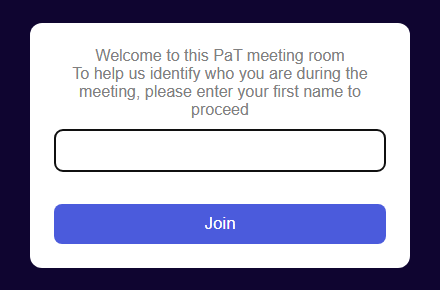
Open the link you were sent. Before the video room loads, a box asks for your name: Welcome to this PaT meeting room. To help us identify who you are during the meeting, please enter your first name to proceed.
Lesson screenshot

Step 2

Type your first name and click Join. A name can be up to 30 characters. The word Guest isn't accepted, and nor are these characters: $ ! < > : ;. If something isn't accepted, a message under the box says why.

Step 3

The page reloads and the video room opens with the name you typed. It's the name everyone in the meeting sees.

Step 4

PaT video rooms are locked, so you knock and wait until the organiser lets you in.

Step 5

The next time you join from the same device and browser, your name is already filled in. Check it and click Join.

Letting people in

Step 1

Because the room is locked, guests and staff knock before they can come in. The organiser, and anyone else in the room as a host, is told when someone knocks.

Step 2

Let the person in, put them on hold with a message, or reject them.

Asking to record

Summary Only a host can record in a video room. A staff member who is signed in to PaT, and is not the room's organiser, can ask the organiser for permission. This works on a computer, not in the PaT phone app.

Step 1

Join the video room from PaT while you are signed in to PaT in the same browser. A Request to record button, with a padlock, sits at the top centre of the room.

Lesson screenshot

Step 2

Before you ask, make sure everyone in the meeting agrees to being recorded.

Step 3

Click Request to record. The button changes to Asking the organiser, with a countdown from 10.

Lesson screenshot

Step 4

If the organiser clicks Deny, the button says The organiser said no. A few seconds later it changes back, and you can ask again, up to 6 times in an hour.

Step 5

If the organiser clicks Allow, or doesn't answer within 10 seconds, your room reloads and you rejoin as a host. The button says You can record now. Use the record button in the room, and then Recording allowed.

Lesson screenshot

Step 6

Click Record, the dot in a circle in the bar at the bottom of the room, to start recording. When you stop the recording, you can download it to your device.

Step 7

As a host you can also let in people who knock, and mute or remove people. Use these only when the meeting needs them.

Step 8

Your permission lasts until the organiser stops it, or for 12 hours. If you reload the page or click refresh room, you come straight back in as a host.

Answering a request

Summary For the room's organiser, with the video room open.

Step 1

When a staff member asks to record, a line appears at the top of your video room with their first name, is asking to record, and a countdown.

Lesson screenshot

Step 2

Click Allow to let them record, or Deny to say no. You have 10 seconds to answer.

Step 3

If you don't answer within 10 seconds, the request is allowed. This lets staff record when the organiser hasn't joined the meeting.

Step 4

Once a request is allowed, the line says the staff member can record, with Stop and Hide buttons. If nobody answered in time, it also says no answer within 10 seconds.

Lesson screenshot

Step 5

Click Hide to clear the line from your screen. It doesn't stop the recording.

Step 6

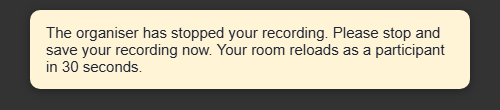
Click Stop to end their permission. They get 30 seconds to stop and save their recording, then their room reloads as a participant, and they knock to come back in.
Lesson screenshot

Purpose / Intent of the Module

A brief description of what this module is about

Header One

Check yourself

Checking your PaT sign-in…

PreviousUsing SDs as a report or meeting minutes appNext Activity Notifications

On this page

  • Inviting a guest
  • Step 1
  • Step 2
  • Step 3
  • Joining as a guest
  • Step 1
  • Step 2
  • Step 3
  • Step 4
  • Step 5
  • Letting people in
  • Step 1
  • Step 2
  • Asking to record
  • Step 1
  • Step 2
  • Step 3
  • Step 4
  • Step 5
  • Step 6
  • Step 7
  • Step 8
  • Answering a request
  • Step 1
  • Step 2
  • Step 3
  • Step 4
  • Step 5
  • Step 6
  • Purpose / Intent of the Module
  • Header One
PPaT Wiki

Documentation, knowledge base and community support for People and Tasks.

Documentation

  • Getting started
  • Core concepts
  • Integrations
  • API reference

Support

  • Knowledge base
  • Community forum
  • Contact us
  • Service status

Company

  • PaT
  • Blog
  • Terms
  • Privacy

© People and Tasks. All rights reserved.